Find the fields. Review the details.
Detect PDF form fields with AI, including text, checkboxes, dates, and tables. Import existing interactive fields locally or review AI suggestions for flat pages.
Manual filling and downloads are free. Optional AI needs an account and credits.
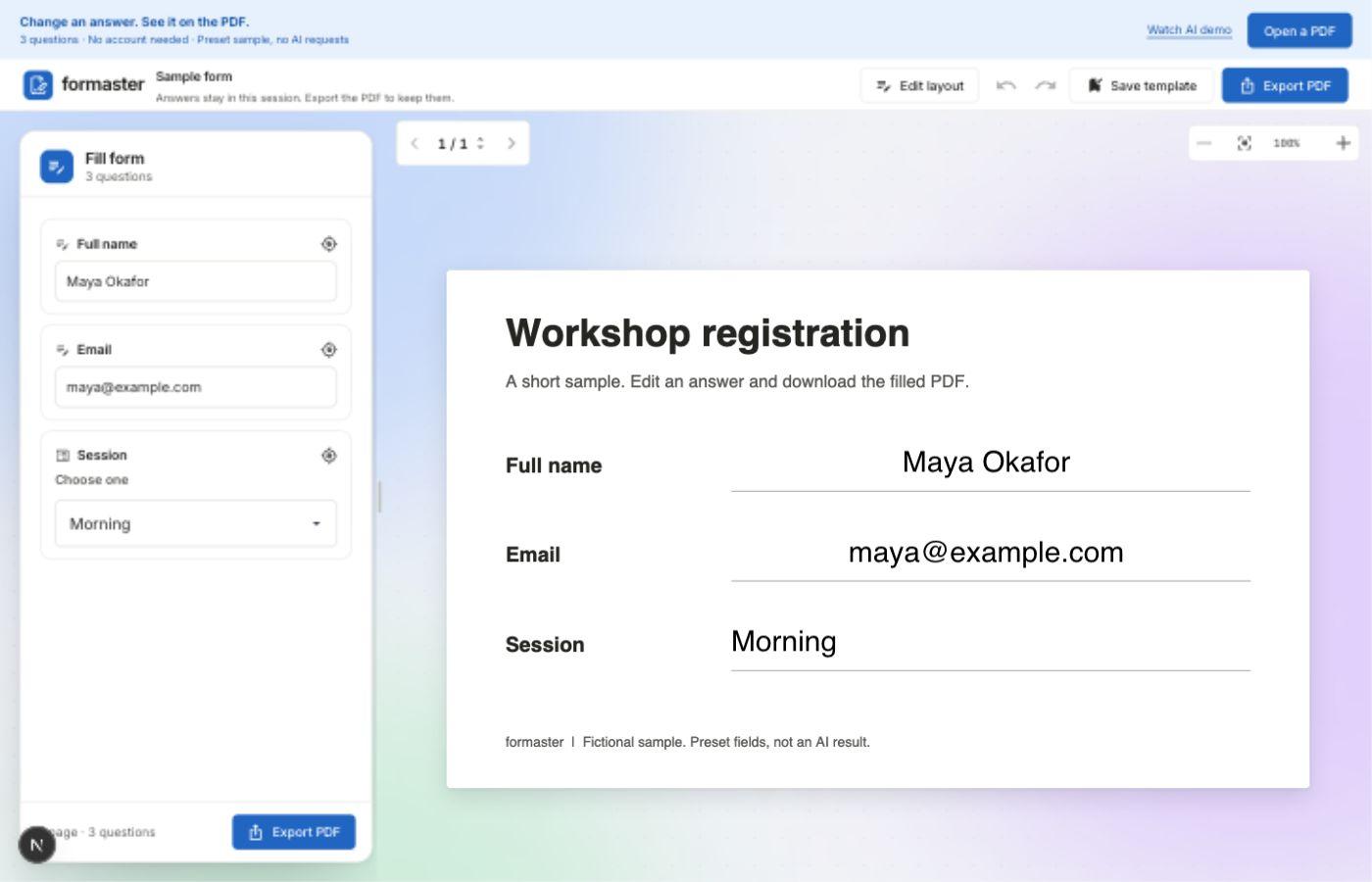
Try a form right here
Edit an answer. See it on the page. Download the sample PDF.
- Full name
- Maya Okafor
- maya@example.com
- Session
- Morning
Fictional sample · Preset fields · No AI requests
Two ways to find a field
A PDF with native interactive fields can be read locally without AI. Flat PDFs and scans have no native field structure, so AI can suggest answer fields from the visible page.
Review before filling
A printed box can mean a checkbox, an individual character cell, or part of a table. Check the proposed field type, label, and position. Add missing fields and remove suggestions that do not belong.
Control the content sent to AI
Before starting detection, hide areas you do not want sent. AI receives the page content that remains visible. Avoid relying on field detection as a document validation or eligibility check.
See the form and the PDF together
Switch between filling and layout editing. Check the page before you export.
Questions, answered
Is field detection always an AI operation?
No. Existing AcroForm fields are imported locally. Detecting fields on a flat or scanned page uses optional AI and credits.
What does a detection run cost?
Normal AI uses 1 credit per run. Smart uses 2 credits and is available on paid plans. New accounts receive 5 signup credits once.